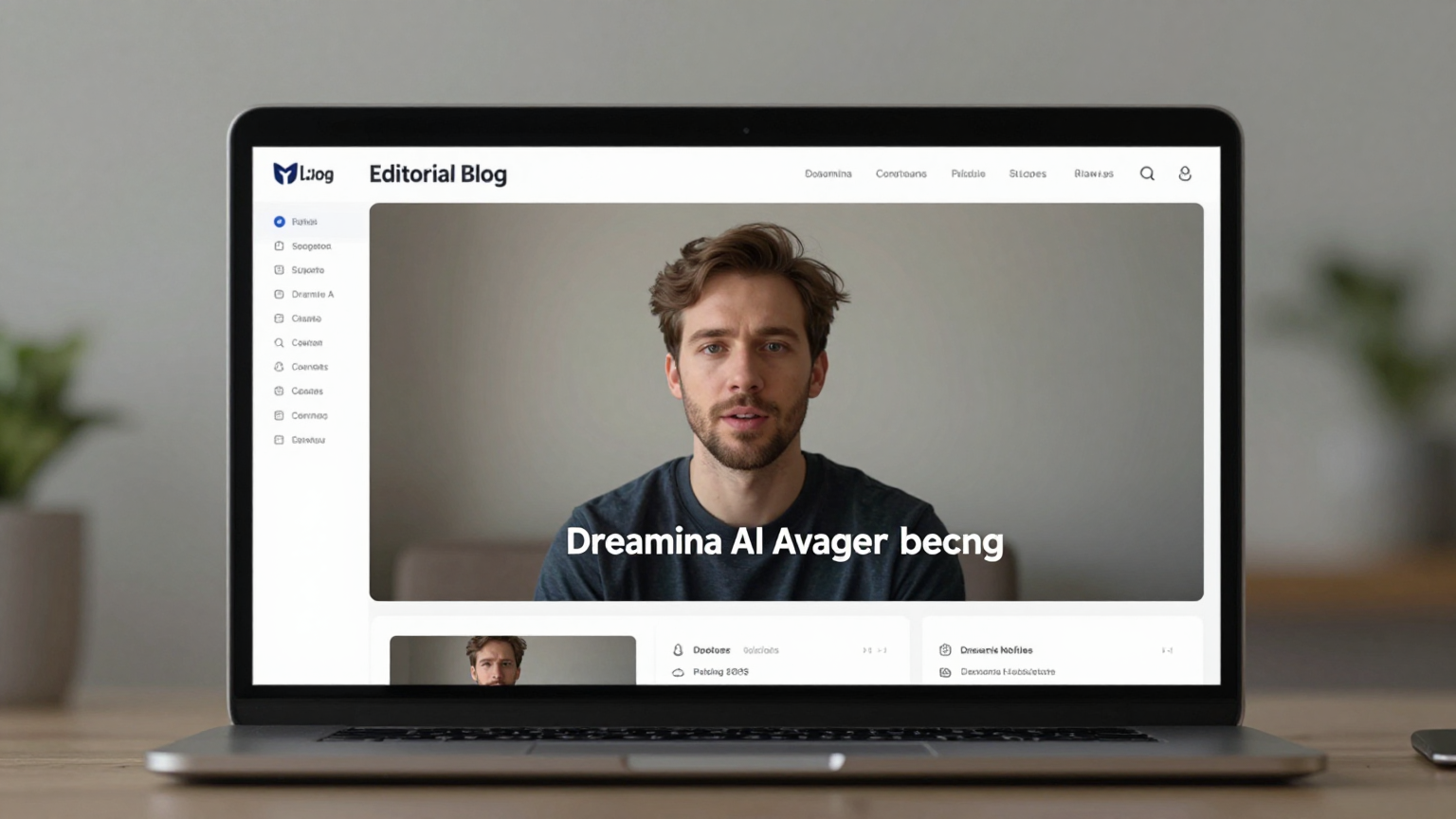
How to Create Realistic Talking Avatars with Dreamina AI Avatar Generator in 2026
Highlights
- Dreamina AI avatar generator can turn a still image into a realistic talking avatar with either typed text or uploaded audio.
- If your goal is a realistic talking avatar generator, the result depends more on source image quality, voice pacing, and motion settings than on the prompt alone.
- Search interest is broader around AI avatar generator than Dreamina-only brand terms, so it helps to understand where Dreamina fits compared with HeyGen, Synthesia, and D-ID.
- This guide shows you a practical workflow for creating better talking avatars in 2026, plus the common mistakes that make avatars look fake.
Table of Contents
- Introduction
- What Dreamina AI Avatar Generator Actually Does
- How to Create a Realistic Talking Avatar in Dreamina
- What Makes a Talking Avatar Look Realistic
- When Dreamina Is the Right Tool and When It Is Not
- Dreamina vs Other AI Avatar Tools
- Best Prompts and Workflow Tips
- FAQs
- Conclusion
Introduction
If you have been searching for Dreamina create realistic talking avatars with AI avatar generator, you are probably trying to solve one of three problems. You want to turn a photo into a speaking avatar without filming. You want a faster way to create short talking-head videos for content, training, or ads. Or you want to know whether Dreamina is good enough before you commit time to learning the workflow.
That is the right question to ask in 2026, because the phrase AI avatar generator now covers very different products. Some tools focus on studio-style presenters. Some specialize in lip sync from a single image. Others are closer to full character animation systems. Dreamina sits in the middle: it is attractive because it is easy to start, visually flexible, and good for creator-style workflows, but the output quality depends heavily on how you set up the image, voice, and motion.
Google Trends also shows the practical SEO reality here: demand for the broad topic AI avatar generator is much larger than narrow Dreamina-only search terms, while related rising queries include terms like best ai avatar generator and branded alternatives such as HeyGen. That means the right article should not just explain Dreamina. It should help you decide how to get realistic output and where Dreamina fits in the market.
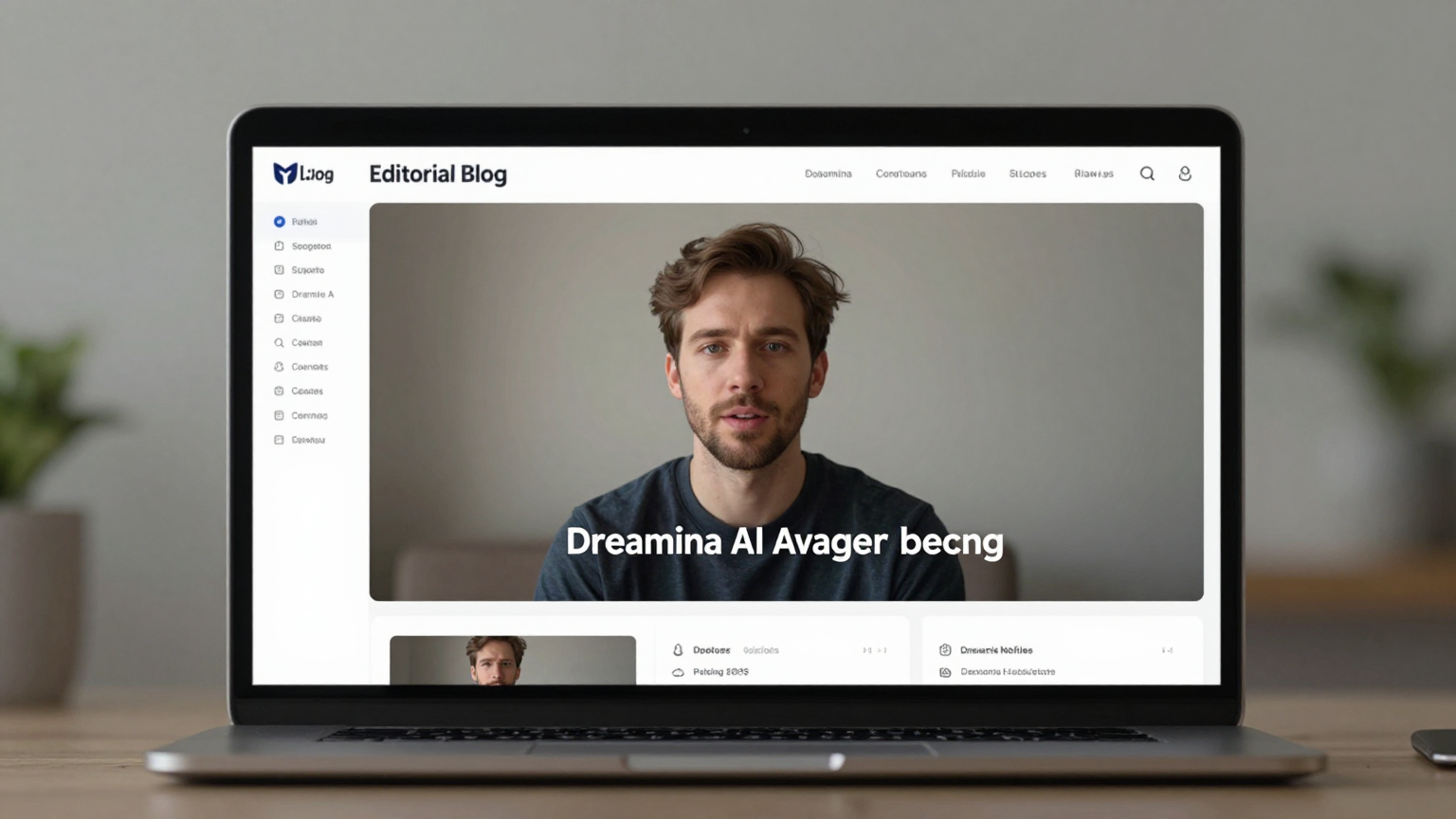
This tutorial-style video is useful because it shows the kind of short, creator-oriented workflow most people expect from Dreamina. Watch it if you want a quick visual overview first, then use the guide below to improve realism and avoid the usual low-quality lip sync look.
What Dreamina AI Avatar Generator Actually Does
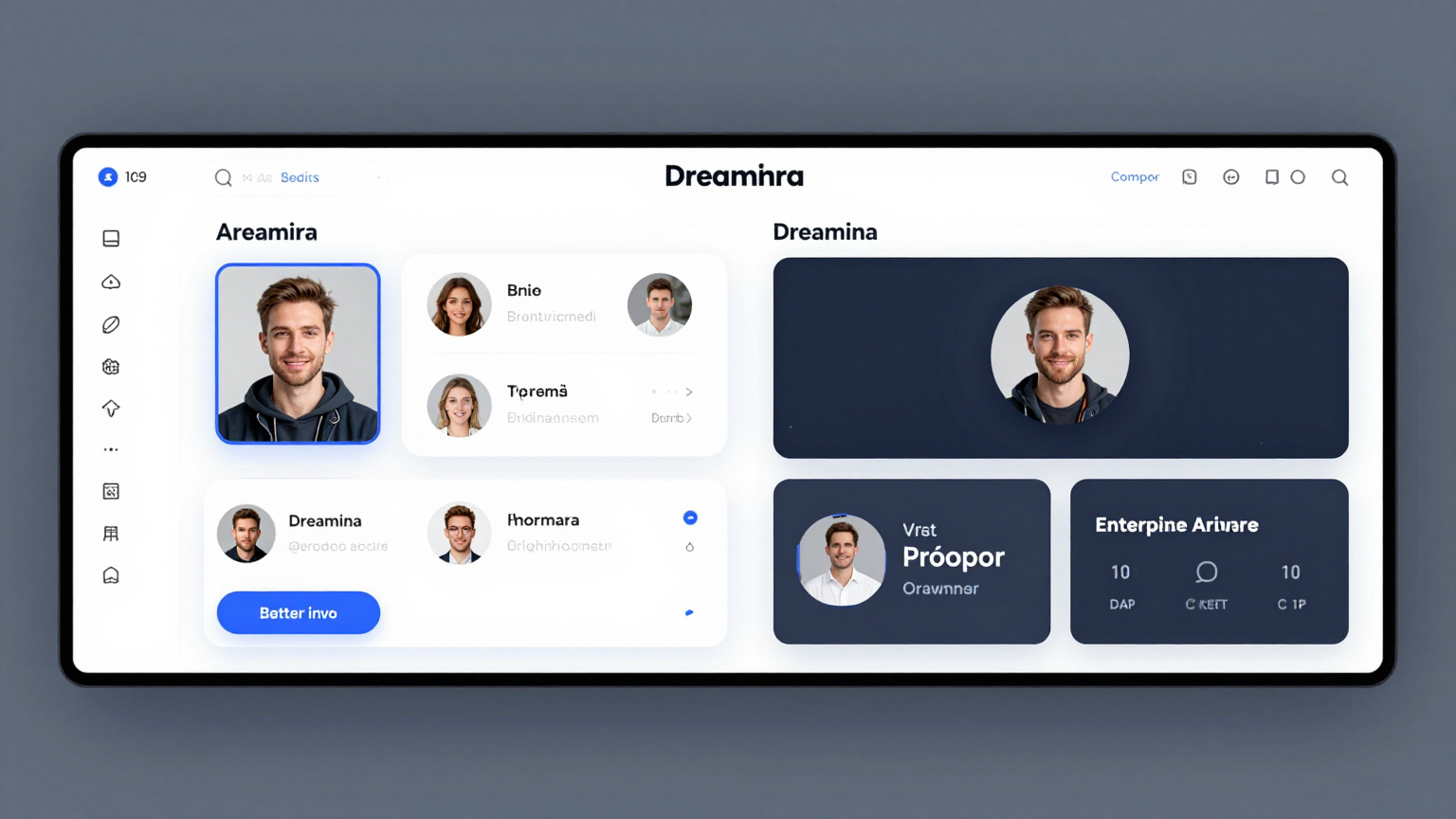
Dreamina is best understood as a creative AI video workflow rather than a single fixed avatar product. In practice, people use it to generate or refine a character image, then animate that character into a speaking clip with voice-driven motion. Depending on the current interface and region, you may see capabilities framed around image generation, video generation, lip sync, talking photo, or avatar creation.
What matters for your workflow is this:
- You can start from a generated image or an uploaded portrait.
- You can drive speech from text or from an audio file.
- You can improve output with supporting tools such as HD Upscale, Resync, or Frame interpolation when the first pass is close but not clean enough.
That makes Dreamina appealing for creators who want more visual freedom than template-heavy business avatar tools. If you want a fashion-style character, stylized presenter, anime host, cinematic spokesperson, or social-content persona, Dreamina gives you more room to shape the image itself before animation begins.
At the same time, that flexibility is exactly why results vary. A tool like Synthesia or HeyGen often produces more consistent business-presenter output because the system controls more of the environment. Dreamina gives you freedom, but that means you have to manage realism yourself.
Why people search for Dreamina specifically
Most users are not looking for “an avatar” in the abstract. They want one of these outcomes:
- A talking avatar from a selfie or profile photo
- A realistic lip sync video for TikTok, Reels, or Shorts
- A faceless content workflow with a consistent digital presenter
- A low-cost way to test AI spokesperson videos before moving into higher-end tools
If that sounds like your use case, Dreamina is worth trying. But you will get the best results when you treat it as a visual pipeline, not a one-click magic button.
How to Create a Realistic Talking Avatar in Dreamina
The fastest successful workflow is usually not “generate a random character and animate immediately.” The better approach is to separate the process into image quality, script quality, and motion quality.
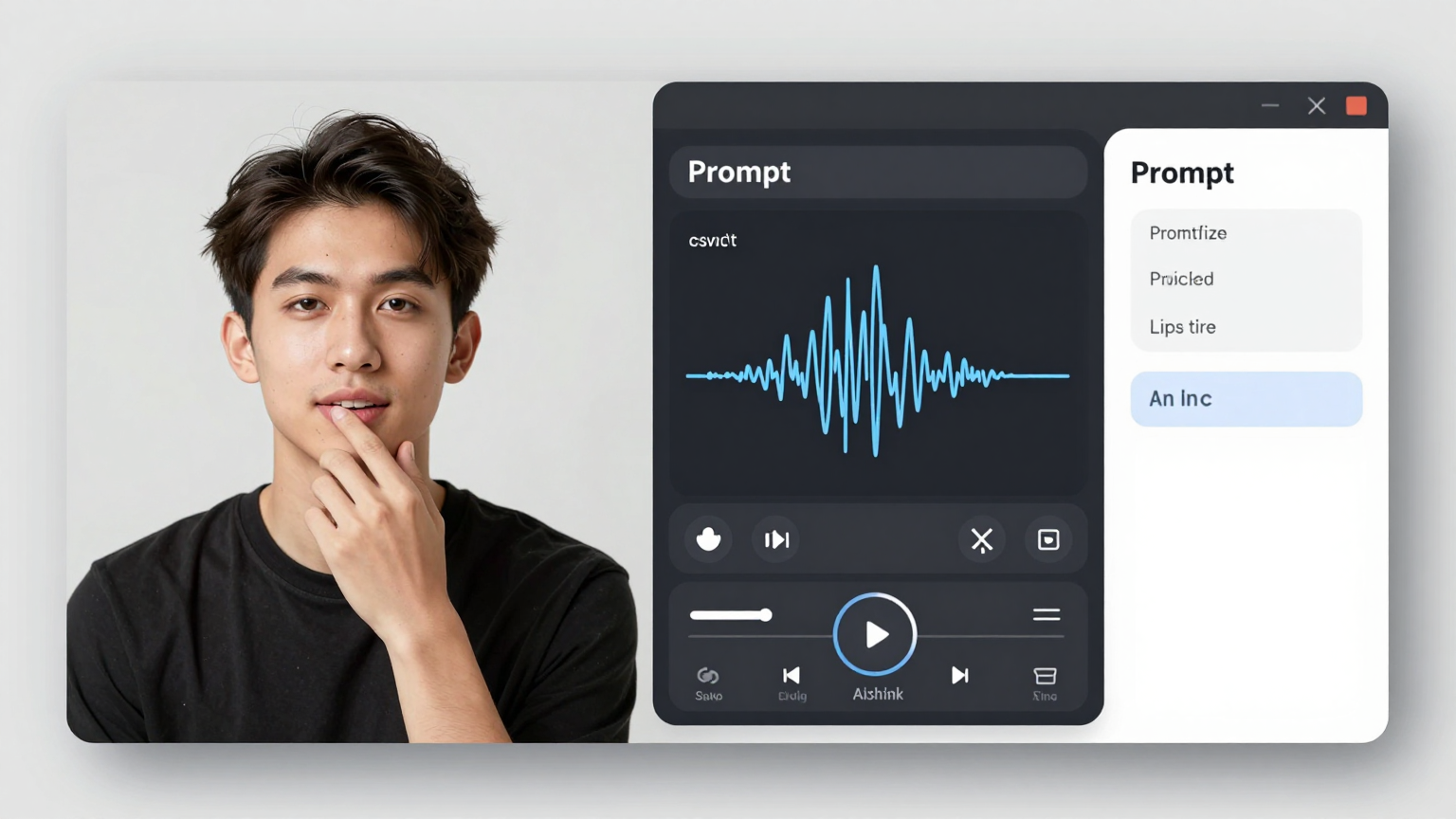
Start with the right image
For a realistic talking avatar, your source image should have:
- A clear face angle, ideally front-facing or slightly turned
- Even lighting on the face
- Visible eyes and mouth without heavy obstruction
- Sharp detail around lips, chin, and jawline
- A simple background if realism matters more than style
If you start from a weak image, no lip sync model will save it. Blurry mouths, dramatic shadows, hidden teeth, or extreme side profiles tend to produce stiff or broken facial motion.
Keep the script conversational
Typed scripts work best when they sound like real speech. Long, dense sentences create unnatural pacing. Shorter clauses with natural pauses produce better results. If you already have audio, clean narration with moderate speed usually outperforms rushed speech or noisy recordings.
Good talking-avatar scripts use:
- Short sentences
- Clear emphasis points
- Minimal tongue-twister phrasing
- Natural pauses between ideas
Bad scripts usually fail because they read like documentation, not speech.
Generate the first pass, then refine
The first result is often a draft, not the final output. This is where users give up too early. If the base motion is close, use Dreamina’s refinement tools instead of rebuilding from scratch.
Typical refinement path:
- Fix image quality first.
- Re-run lip sync with cleaner audio or adjusted text.
- Use upscale or interpolation if the motion is acceptable but detail feels soft.
- Re-sync if the mouth timing drifts or blinks feel awkward.
That order matters. Many creators waste time rewriting prompts when the real problem is the source image or the voice track.
Aim for short clips first
If you want realism, do not start with a 3-minute monologue. Start with 8 to 20 seconds. Short clips are easier to debug, faster to rerun, and much more forgiving. Once the face, voice, and mouth motion look right, scale to longer scenes.
What Makes a Talking Avatar Look Realistic
People often say they want a “realistic talking avatar,” but they usually mean a specific cluster of qualities: believable lip movement, stable eyes, clean skin detail, natural head motion, and audio that does not feel detached from the face.
Lip sync matters more than dramatic motion
The most common mistake is chasing flashy motion instead of mouth accuracy. Viewers will tolerate modest head movement if the lips match the words. They will not tolerate a beautiful image with visibly wrong mouth timing.
For better lip sync:
- Use clean audio without music under the voice
- Avoid overcompressed or robotic narration
- Keep speech speed moderate
- Test difficult words separately if the mouth breaks on them
Eye behavior is a realism multiplier
Small eye artifacts make an avatar feel synthetic very quickly. Unblinking stares, asymmetrical eye movement, or sudden gaze jumps are more damaging than slightly imperfect lip sync. If your image already has unnaturally wide eyes, exaggerated makeup highlights, or awkward reflections, the animation will usually amplify the problem.
Lighting consistency is underrated
Realism collapses when the face lighting and motion cues disagree. If the original image has cinematic rim light on one side, but the motion creates flat facial movement, the result can feel uncanny. In general, soft studio-style lighting is safer than extreme drama when your goal is credibility.
Motion range should match the use case
Different use cases need different levels of expressiveness:
- A training presenter should look calm and controlled
- A social clip can handle slightly stronger expression
- A sales or landing-page avatar should feel confident, not theatrical
- A meme or stylized creator clip can be more exaggerated
The mistake is using one motion profile for every format.
When Dreamina Is the Right Tool and When It Is Not
Dreamina works best when you need visual flexibility and fast iteration. It is especially good for creator workflows where the look of the avatar matters as much as the spoken performance.
Dreamina is a strong fit when you need:
- Talking avatars from a photo or generated portrait
- Creative visual control over character style
- Fast short-form content tests
- Lower-friction experimentation before you standardize a workflow
- Character-driven marketing or social content
Dreamina is a weaker fit when you need:
- Enterprise-grade presenter consistency across large teams
- Built-in business templates and governance
- Formal corporate avatar management
- High-volume multilingual training delivery with strict compliance needs
If your primary requirement is “make a spokesperson that always looks polished in a corporate template,” tools like Synthesia or HeyGen may be easier. If your requirement is “make this specific image talk convincingly,” Dreamina becomes much more attractive.
Dreamina vs Other AI Avatar Tools
This is where search intent widens. People looking for a realistic talking avatar generator are often comparing multiple tools even if they type Dreamina into Google first.
| Tool | Best for | Strength | Tradeoff |
|---|---|---|---|
| Dreamina | Creative talking avatars from images | Strong visual flexibility, good for creator workflows | Less standardized than enterprise avatar platforms |
| HeyGen | Marketing presenters and creator avatars | Easy workflow, polished avatar delivery, strong brand awareness | More opinionated output style |
| Synthesia | Business training and internal communications | Structured presenter workflows, enterprise-friendly positioning | Less flexible for stylized or experimental visuals |
| D-ID | Talking photo and conversational avatar use cases | Strong identity around speaking portraits and avatar experiences | Output style depends heavily on source material |
| LipSyncX | Photo-to-speaking video and lip-sync oriented workflows | Flexible lip-sync creation path with model variety and faster experimentation | Best when you want to control workflow rather than use a fixed presenter template |
A practical way to choose
Choose Dreamina if your top priority is:
- Character look
- Image-to-video creativity
- Social-native experimentation
- Faster exploration of multiple visual identities
Choose a more presenter-focused tool if your top priority is:
- Corporate consistency
- Team workflows
- Reusable templates
- Predictable business output
In other words, Dreamina is often the better answer for creators, while enterprise avatar platforms are often easier for internal communications teams.
Best Prompts and Workflow Tips
If you are using Dreamina as an AI avatar generator, your prompt should describe a believable source portrait before you think about speech. The talking effect only looks real when the base portrait already feels like a real person in a real lighting setup.
Prompt pattern for realistic avatars
Use prompts like this:
Photorealistic head-and-shoulders portrait of a confident female presenter,
soft studio lighting, natural skin texture, clear eyes, subtle expression,
looking at camera, clean background, high facial detail, realistic proportions
Then adapt it for your niche:
Photorealistic founder-style talking avatar, neutral gray background,
professional blazer, soft key light, crisp lip detail, natural expression,
editorial realism, camera-level framing, clean facial anatomy
Prompt pattern for creator-style avatars
Cinematic creator portrait, warm practical lighting, expressive but natural face,
slight smile, detailed lips and eyes, high realism, modern podcast host aesthetic
The important part is not adding more adjectives. It is choosing details that help animation:
- front-facing or near-front-facing angle
- natural skin texture
- visible lip line
- realistic eyes
- controlled lighting
Workflow tips that usually improve output
- Generate 3 to 5 source portraits before you animate anything.
- Keep one voice track per emotional tone instead of trying to force one file into every scene.
- Do not over-style the face if you need believable mouth shapes.
- Test one sentence before rendering the whole script.
- Save your best source portraits and reuse them for consistency.
If the result looks fake, check these first
- Is the mouth too small or partially hidden?
- Is the voice too fast?
- Is the portrait too stylized for realistic motion?
- Is the lighting too dramatic?
- Did the model add teeth or lips that do not match the voice?
In many cases, changing the source image works faster than changing the script.
FAQs
What is Dreamina AI avatar generator?
Dreamina AI avatar generator is a creative workflow for generating portraits and turning them into speaking or animated avatar-style videos. In practice, people use it to create talking avatars from generated or uploaded images, then drive speech with text or audio.
Can Dreamina create realistic talking avatars from a photo?
Yes, but realism depends on the source photo, the voice quality, and the motion settings. Clean front-facing portraits with good lighting and moderate speech pacing usually produce the best talking-avatar results.
Is Dreamina better than HeyGen for talking avatars?
It depends on your goal. Dreamina is stronger when you want visual freedom and character experimentation. HeyGen is often easier when you want a polished presenter workflow with less manual iteration.
What is the best image style for a realistic talking avatar generator?
Use a sharp head-and-shoulders portrait with soft lighting, visible lips, clear eyes, and minimal obstruction. Realistic portraits generally animate better than heavily stylized or extreme-angle images.
Should you use text or uploaded audio in Dreamina?
Uploaded audio usually gives you more control if you already have clean narration. Text is faster for prototyping. For production-quality avatar videos, many users get better results from a well-recorded voice track.
Why does my AI avatar look uncanny?
The most common causes are weak source images, harsh lighting, noisy audio, unnatural blinking, and speech that is too fast for the lip sync model. Fixing the portrait or audio usually helps more than rewriting the prompt.
Is Dreamina good for business videos?
It can be, especially for experimental ads, creator-style explainers, or branded characters. For high-volume corporate training or standardized internal communications, tools built for enterprise presenters may be easier to scale.
Conclusion
If your goal is to create realistic talking avatars with Dreamina AI avatar generator, the tool is absolutely capable of producing strong results. But the best results come from treating the process like a workflow, not a shortcut. Start with a clean portrait. Use better voice input. Keep early clips short. Then refine with the tools Dreamina gives you instead of regenerating blindly.
The bigger strategic takeaway is also important. Search demand is not limited to Dreamina. Most users are comparing broader solutions under terms like AI avatar generator, talking avatar from photo, and realistic talking avatar generator. That is why your workflow and quality standards matter more than the brand name alone.
If you want a creative, image-first route to talking avatars, Dreamina is a strong option in 2026. If you want a flexible production workflow for photo-driven lip sync and avatar video creation, you should also test how Dreamina compares with a dedicated workflow tool before you commit.
Call to Action
If you want to turn portraits into cleaner speaking videos, test your Dreamina output against a dedicated lip-sync workflow and compare which setup gives you better mouth accuracy, faster revisions, and more reusable assets. If you need a second path for production-ready talking avatars, try LipSyncX and compare the result side by side with your Dreamina render.